

Uploading Files
You can upload files to Zark Drive through the interface using either drag-and-drop or the file picker. Multiple files can be uploaded at once, and supported formats are processed automatically based on file type.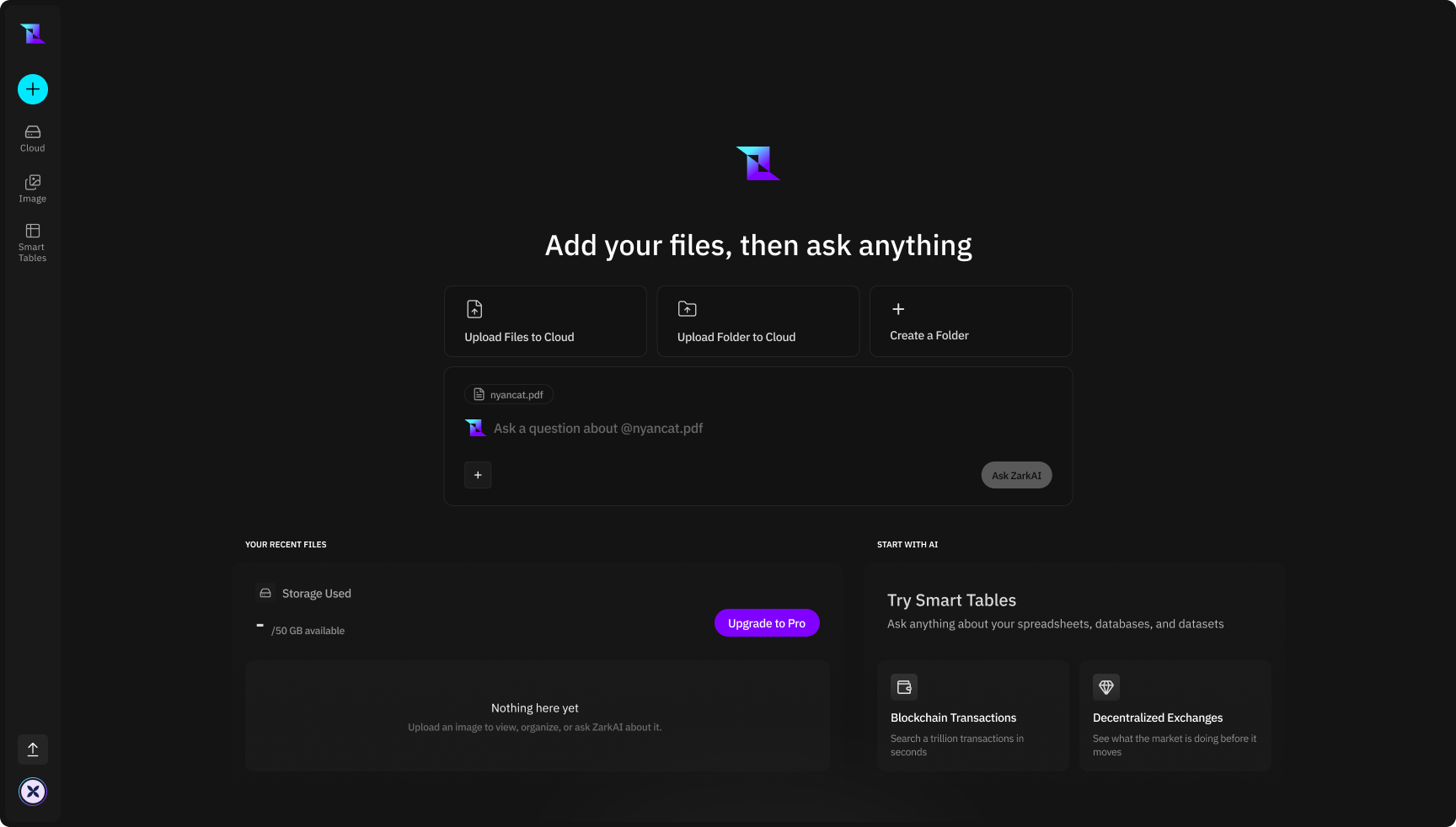
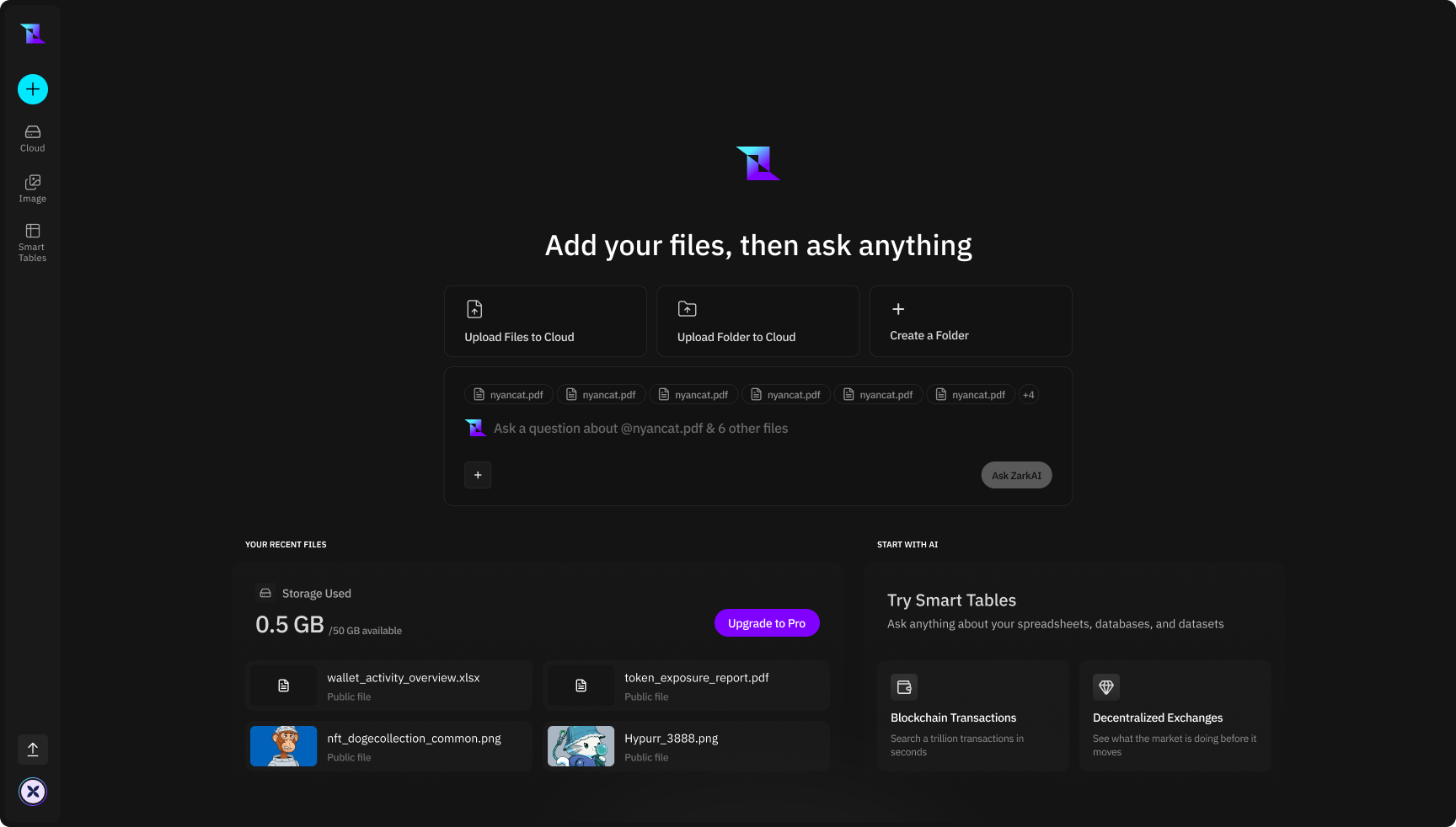
- Upload Files to Cloud - Select individual files to upload
- Upload Folder to Cloud - Upload entire folders and their contents
- Create a Folder - Organize files into folders before uploading
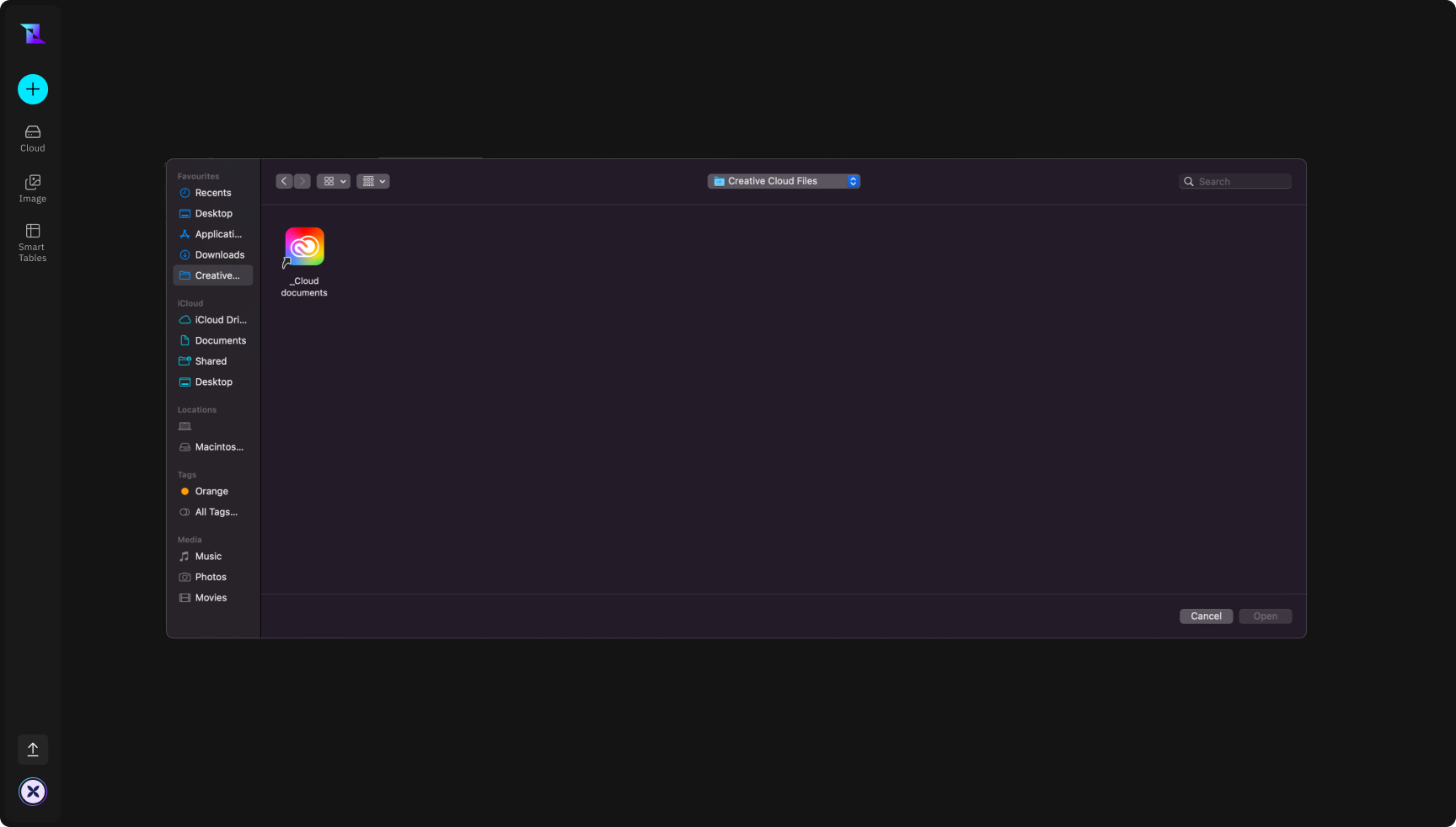
After upload:
- Files are indexed for search
- Content is analyzed when applicable
- Files become available for AI interaction
File Operations
| Operation | Description |
|---|---|
| Renaming Files | Files can be renamed at any time. Changes take effect immediately and do not affect file content or history. |
| Moving Files | Files can be moved between folders to keep projects organized. Moving a file does not affect its processing state or metadata. |
| Deleting Files | Deleted files are moved to Trash, where they remain recoverable for 30 days. |
File Organization
Folders help structure files by project, client, or workflow. You can:- Create and rename folders
- Move files between folders
- Delete folders (files are moved to Trash)
Folder structure does not affect how AI analyzes files—it only impacts organization. You can organize files however makes sense for your workflow without worrying about AI functionality.
File Views and Sorting
Zark Drive provides multiple ways to view and sort files: Views- Grid view – visual browsing (useful for images and media)
- List view – detailed metadata view
- Name (A–Z / Z–A)
- Date uploaded
- File size
- File type
Trash & 30-Day Retention
How Trash Works
30-day retention period: Deleted files remain recoverable for 30 days. You can restore deleted files anytime during this period. After 30 days, files are permanently deleted and cannot be recovered.
Recovering Files
Permanent Deletion
Files deleted from Trash are permanently removed and cannot be recovered.Best Practices
Organization
- Group files by project or use case
- Keep folder structures shallow when possible
- Use clear, descriptive file names
File Naming
- Use consistent naming conventions
- Include dates or versions where relevant
- Avoid special characters for compatibility